
How chimpAIgo! fits into your usual Moodle workflow
The plugin behaves like any other activity. It does not change your course structure: it simply adds a quick way to create quizzes from the content you already use in class, keeping assessment centralised in the gradebook.
1. Add the activity in your course
With editing turned on, you add a new activity and choose chimpAIgo! (a preconfigured external tool).
Give it a meaningful name, for example: “Quiz – Industrial Revolution” or “Proportionality review – 8th grade”.
2. Choose the source and generate questions
When you open the activity, chimpAIgo! shows a panel where you can:
- Describe the topic in a text prompt, or
- Upload a PDF / provide a URL / use a YouTube or uploaded video.
- Optionally set academic level and subject for extra context.
With that information, chimpAIgo! generates draft multiple-choice questions that you can review, adjust and complete.
3. Publish and let Moodle handle the grades
When the quiz is ready, you mark it as Published in chimpAIgo!. Students see it as just another activity in the course.
After they finish, their percentage of correct answers is sent as a grade to the Moodle gradebook, together with the rest of your assessments.
Everyday use cases in real courses
chimpAIgo! is designed to support your teaching, not replace it. It saves you time on the mechanical part of writing questions, while you keep full control of how you assess your students.
Check understanding after a video
After watching a video (your own or from YouTube), you create a chimpAIgo! activity based on that video:
- Generate questions about the key ideas in the video.
- Adapt the language level to your group.
- Publish as a follow-up quiz or homework.
Ensure they have read the material
You have a long PDF with readings or a dense handout. Instead of writing all questions manually:
- Upload the PDF or share the URL.
- Review the draft questions generated by chimpAIgo!.
- Publish it as a reading check or revision quiz.
Diagnostic quiz at the start of a unit
Before starting a new topic, you write a short prompt describing it (for example “Introduction to functions – 11th grade”).
- Get a quick diagnostic quiz in a few minutes.
- Identify misconceptions and gaps early on.
- Adjust pace and depth based on the results.
Real screenshots of the plugin in action
This is how chimpAIgo! looks inside Moodle for teachers and students. The screenshots below come from a Medicine course with a quiz on acute abdominal pain.
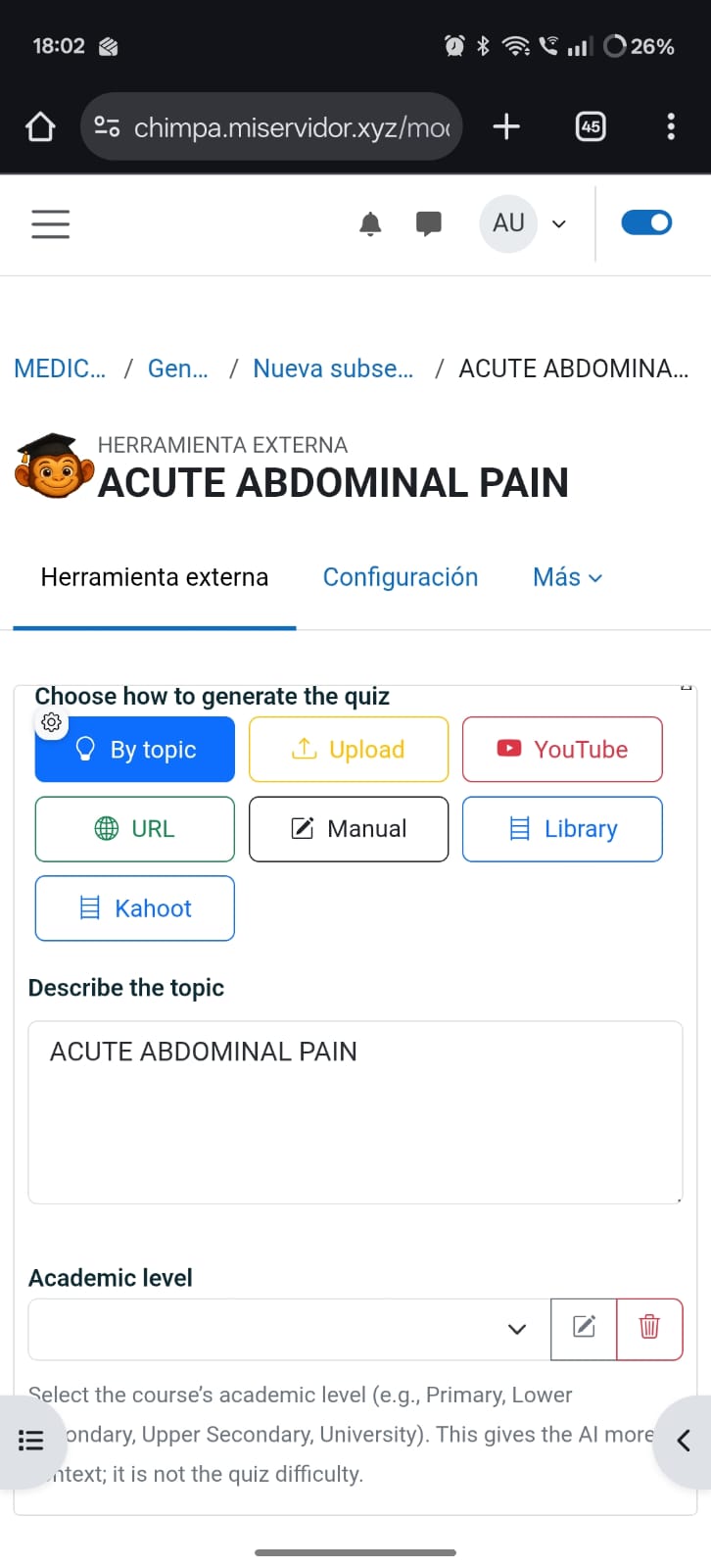
Inside the activity, the teacher chooses whether to generate the quiz by topic text, by uploading a PDF, from a URL, from a YouTube video or other sources. Academic level can also be set to give the AI better context.
The teacher sees the chimpAIgo! activity as an embedded external tool: Questions, Try and Results tabs, number of generated questions, participants and completions, plus the current status (In preparation / Published) and the button to publish.

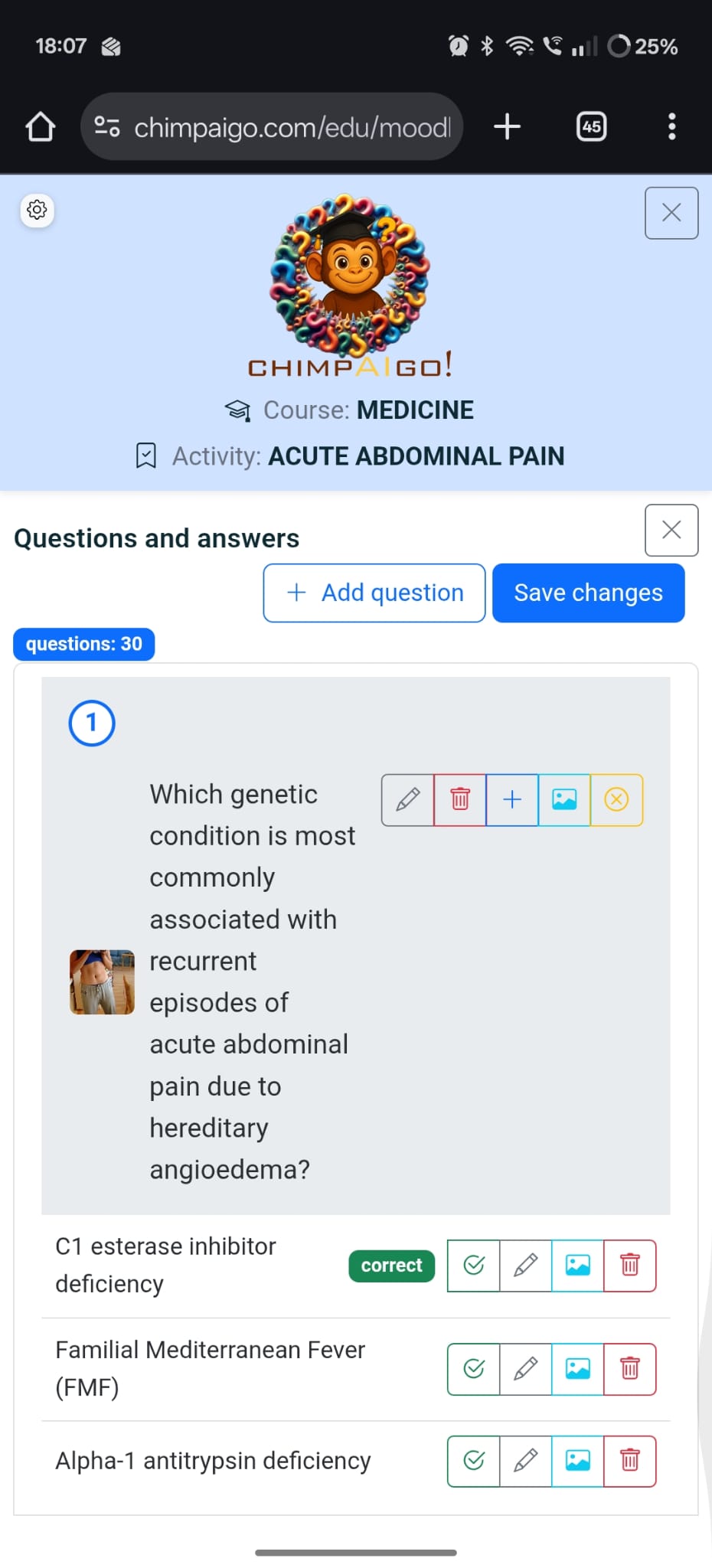
The editor lets you inspect each question, add or change the associated image, mark the correct answer and refine the distractors. You can adjust the whole quiz before saving and publishing it for students.
In the Try tab, teachers can go through the quiz just like a student would, checking navigation, feedback and correct answers before opening it to the group.
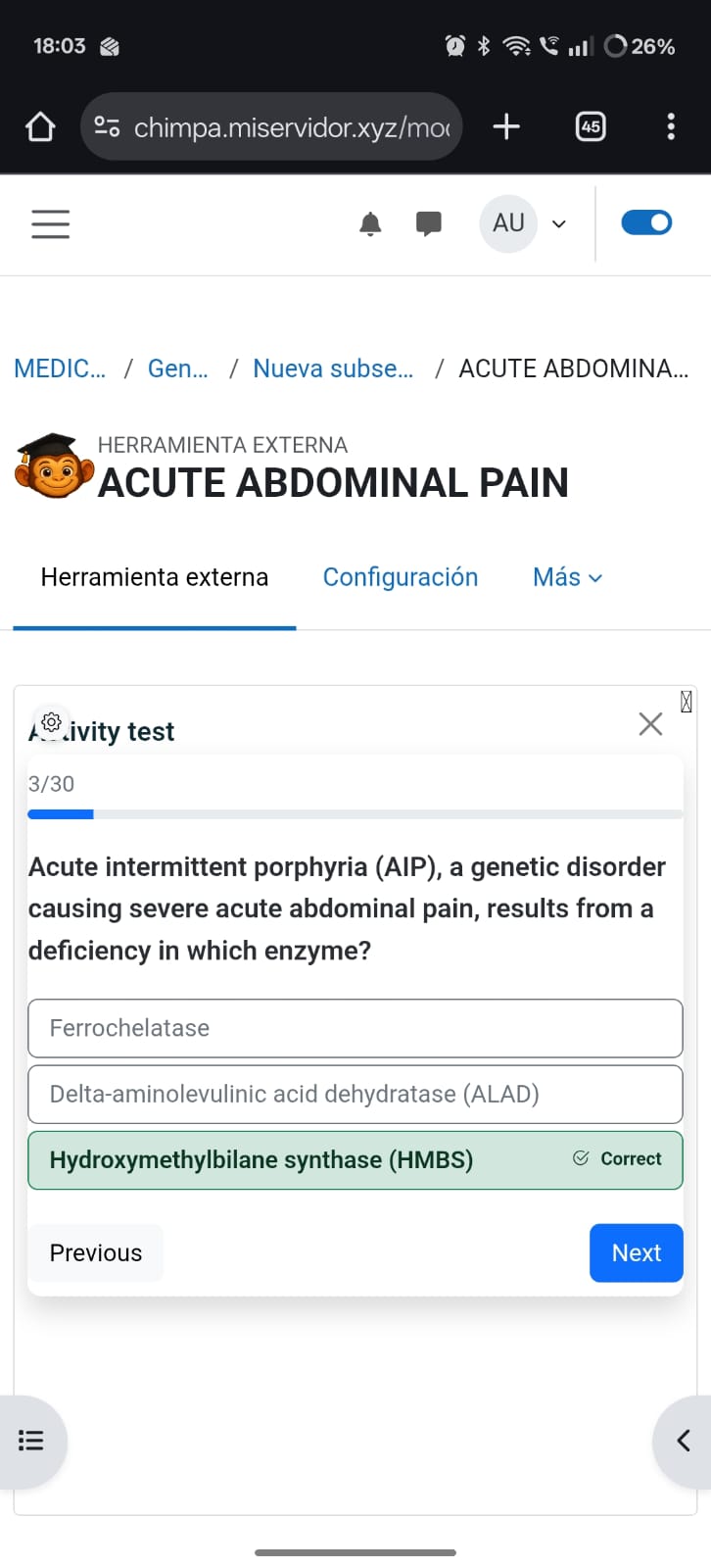
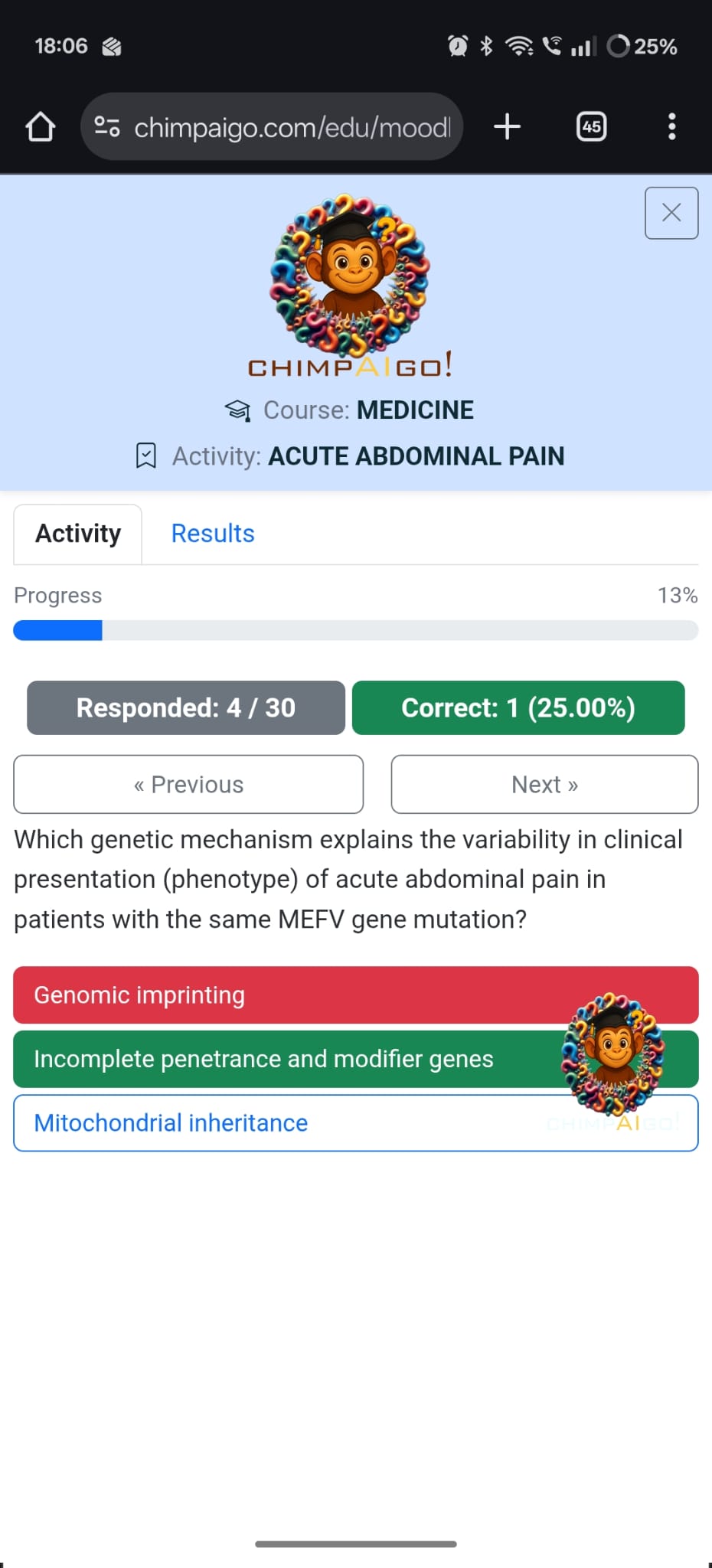
Students answer the chimpAIgo! quiz inside Moodle, with a progress bar, number of answered questions and percentage of correct answers. When they finish, their result is automatically stored in the course gradebook.
Integration with Moodle and technical overview
The plugin is installed like any standard Moodle plugin and registers a preconfigured external tool (LTI). From there, it behaves like a regular activity: normal access permissions, course backups and gradebook integration.
For Moodle site administrators
The chimpAIgo! plugin is distributed as a ZIP file and installed from Site administration → Plugins → Install plugins. Moodle’s installer takes care of validation and database setup.
You can get more information and download the latest version from the
official plugin page:
mod_chimpaigo on moodle.org
.
Once installed:
- chimpAIgo! appears as an external tool / activity type in courses.
- Your Moodle server needs Internet access to communicate with the chimpAIgo! service.
For teachers
For teachers, chimpAIgo! is:
- A new activity to add alongside assignments, quizzes, forums, etc.
- A simple panel to pick the source material (topic, PDF, URL or video).
- A workspace to refine the generated questions before publishing.
Students access it from the course page and, when they finish, their score is automatically transferred to the gradebook without any extra steps.
Frequently asked questions
What kind of questions does chimpAIgo! generate?
The plugin focuses on multiple-choice questions. From your chosen source (prompt, PDF, URL or video), it generates draft stems and answer options that you can edit freely.
Can I modify the quiz generated by the AI?
Yes. You are always in control: you can edit, add and delete questions before publishing. Nothing is shown to students until you decide the quiz is ready.
How is the grade calculated and stored?
When students complete the activity, chimpAIgo! calculates their percentage of correct answers and sends it as the grade for that activity to the Moodle gradebook.
Do students need separate accounts?
No. Students use their normal Moodle accounts and see chimpAIgo! as just another activity in the course. There are no external logins or extra passwords involved.