How chimpAIgo! fits into your usual Moodle course flow
The plugin works like any other activity. It doesn’t change your course structure: it simply adds a fast way to generate quizzes from the materials you already use in class, while keeping all assessment inside the Moodle gradebook.
Create the activity in your course
Add chimpAIgo! as an external tool, just like any other activity.
In a course with editing turned on, you add a new activity and choose chimpAIgo! (preconfigured external tool).
Give it a meaningful name, for example: “Quiz – Industrial Revolution” or “Proportionality review – 8th grade”.
Select your material and generate questions
Use a topic, PDF, URL, or video as the basis for the proposed questions.
When you open the activity, chimpAIgo! shows a panel where you can:
- Describe the topic in a short text or prompt, or
- Upload a PDF / paste a URL / use a YouTube or uploaded video.
- Optionally set level and subject to refine the context.
With that information, chimpAIgo! generates draft multiple-choice questions that you can review, adjust, and extend.
Publish and let Moodle store the grades
Once you’re happy with the quiz, you publish it and it becomes part of your course assessment.
When the quiz is ready, you mark it as Published in chimpAIgo!. Students see it as just another activity in their Moodle course.
When they finish, their percentage of correct answers is sent as a grade to the Moodle gradebook, alongside the rest of the course activities.
From your materials to Moodle grades in 4 steps
A clear path: you start from your resources, chimpAIgo helps you generate questions, you review them, and Moodle records the grades.
1. Start from your own materials
You can start from:
- A written topic or prompt
- A PDF with your content
- A URL your students worked with
- An uploaded or YouTube video

2. chimpAIgo drafts the questions
It automatically creates a draft set of multiple-choice questions based on your material.
- Adapts level and tone
- Identifies key ideas
- Writes coherent answer options
3. You review and decide what to publish
Nothing reaches students without your review:
- Edit questions and answers
- Add or remove anything you want
- Publish when you’re satisfied
4. Moodle records the grades
Students complete the quiz inside Moodle:
- Automatic percentage of correct answers
- Grade integrated into the Moodle gradebook
- No extra steps for the teacher
Everyday classroom use cases
chimpAIgo! is designed to support your teaching, not replace it. It saves time on the mechanical part of writing questions, but you stay in control of what’s kept and how the assessment is structured.
Check what students learned from a video
After watching a video (your own or from YouTube), you create a chimpAIgo! activity based on that resource:
- Generate questions about the key ideas in the video.
- Adapt the wording to your group’s level.
- Publish the quiz as a closing activity or assignment.
Make sure they really read the material
You have a long PDF or reading pack. Instead of writing every question by hand:
- Upload the PDF or paste the corresponding URL.
- Review the question proposals generated by chimpAIgo!.
- Publish the quiz as a reading check or review.
Diagnostic assessment at the start of a unit
Before starting a new unit, you write a short prompt describing the topic (for example “Introduction to functions – 11th grade”).
- Get a diagnostic quiz in a few minutes.
- Spot gaps and weak prior knowledge.
- Adjust pace and depth based on results.
End-of-unit review
You’ve finished a full unit (for example “The Renaissance” or “Basic kinematics”) and want to check what really stuck.
- Generate a quiz from the same materials (PDF, notes, or web pages).
- Refine questions to focus on the key concepts.
- Use it as a final activity or pre-exam review.
Remedial work for students who didn’t pass
When part of the group hasn’t passed a unit, you need a remediation activity without doubling your workload.
- Use the same PDF or unit materials as the basis for the quiz.
- Focus on the minimum essential concepts for recovery.
- Assign the activity only to those who need it and keep the grade in Moodle.
Verify work with online resources
If the class has been working with a website, article, or interactive online resource, you can use chimpAIgo! to quickly turn it into a check quiz:
- Paste the URL of the resource they were supposed to study.
- Generate questions based on that content.
- Refine them to focus on what you really want to assess.
Real plugin screenshots
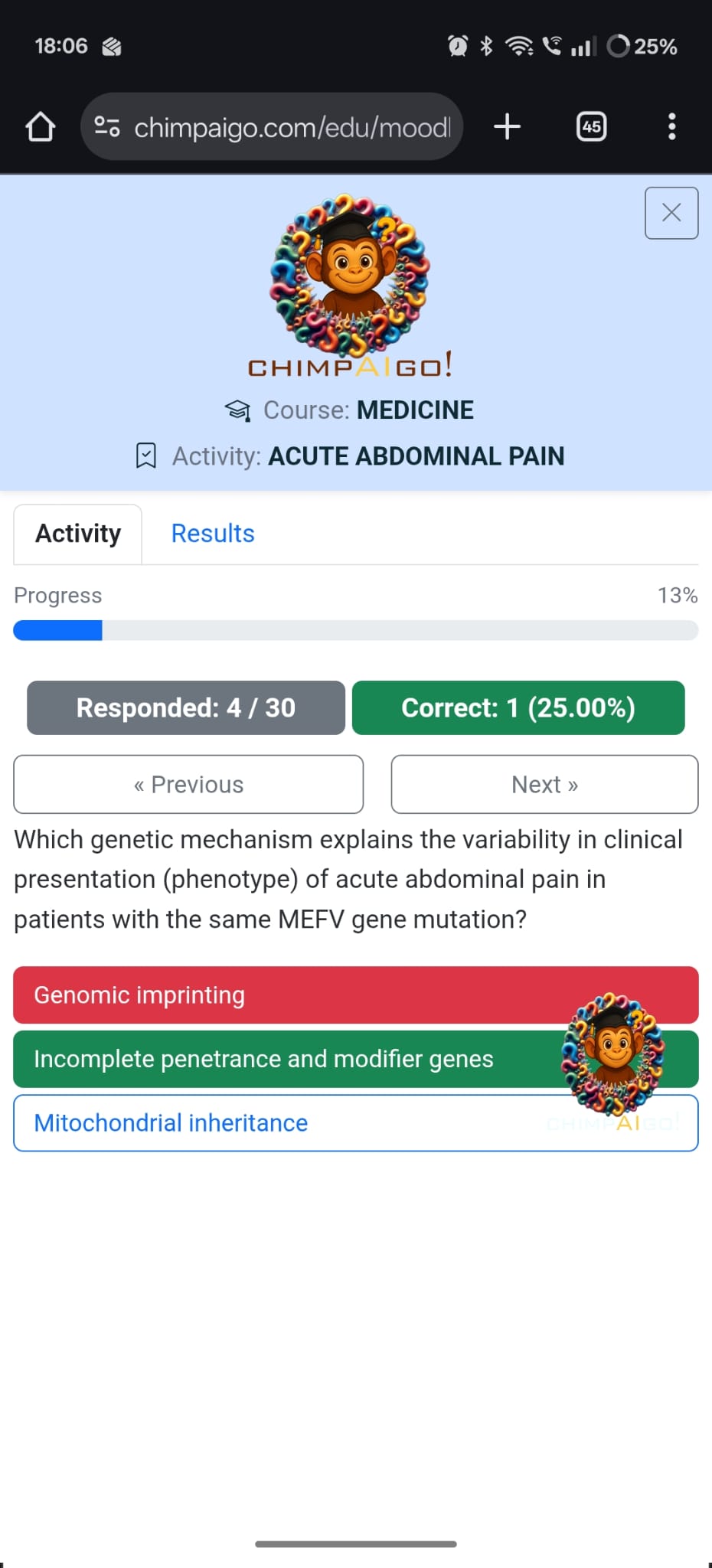
This is how chimpAIgo! looks inside Moodle for teachers and students. The screenshots are from a Medicine course with a quiz about acute abdominal pain.
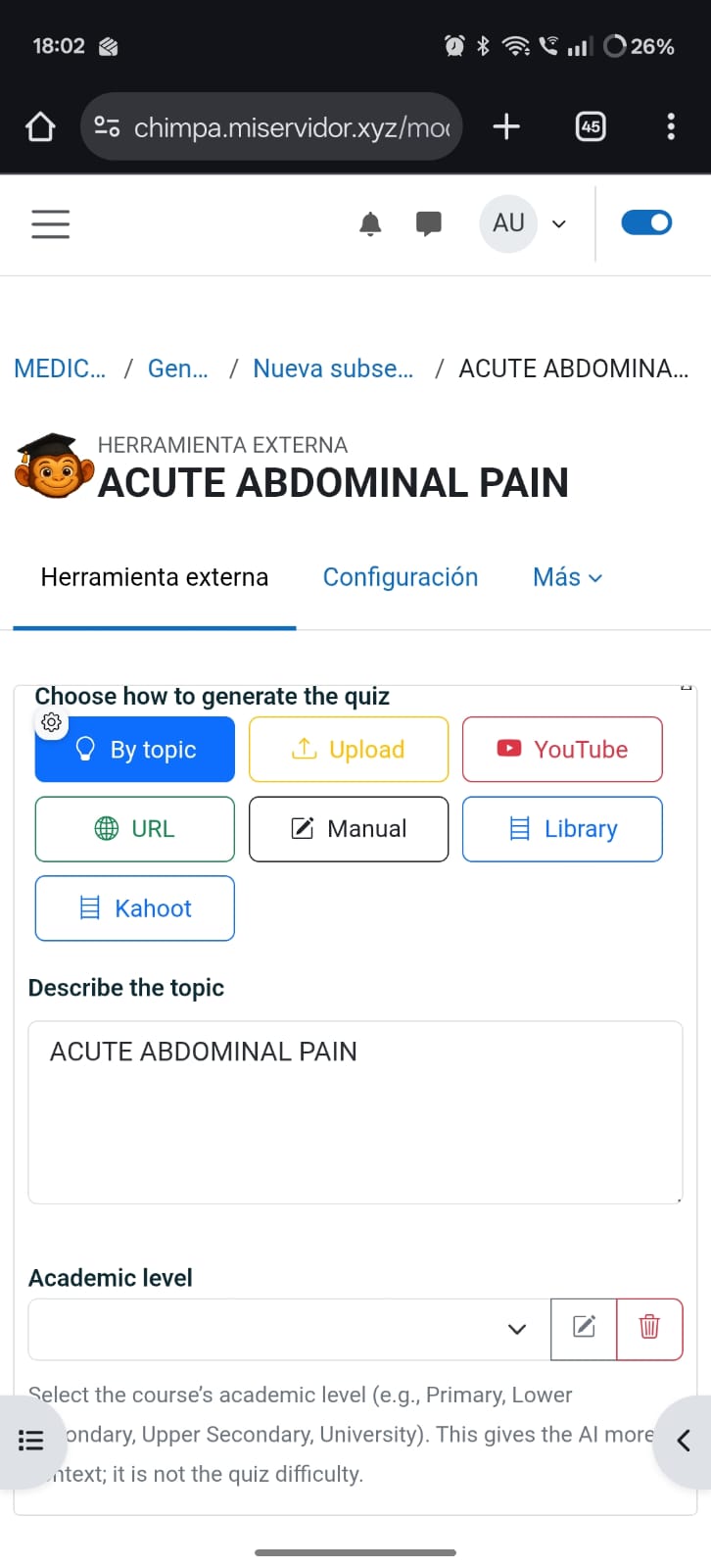
Inside the activity, the teacher chooses whether to create the quiz from a written topic, an uploaded PDF, a URL, a YouTube video, or other sources. Level and discipline can also be set to refine the generation context.
From Moodle, teachers see the activity as an embedded external tool: Questions, Try, and Results tabs, number of questions, participants, and completed attempts, as well as the In preparation / Published status and publish button.

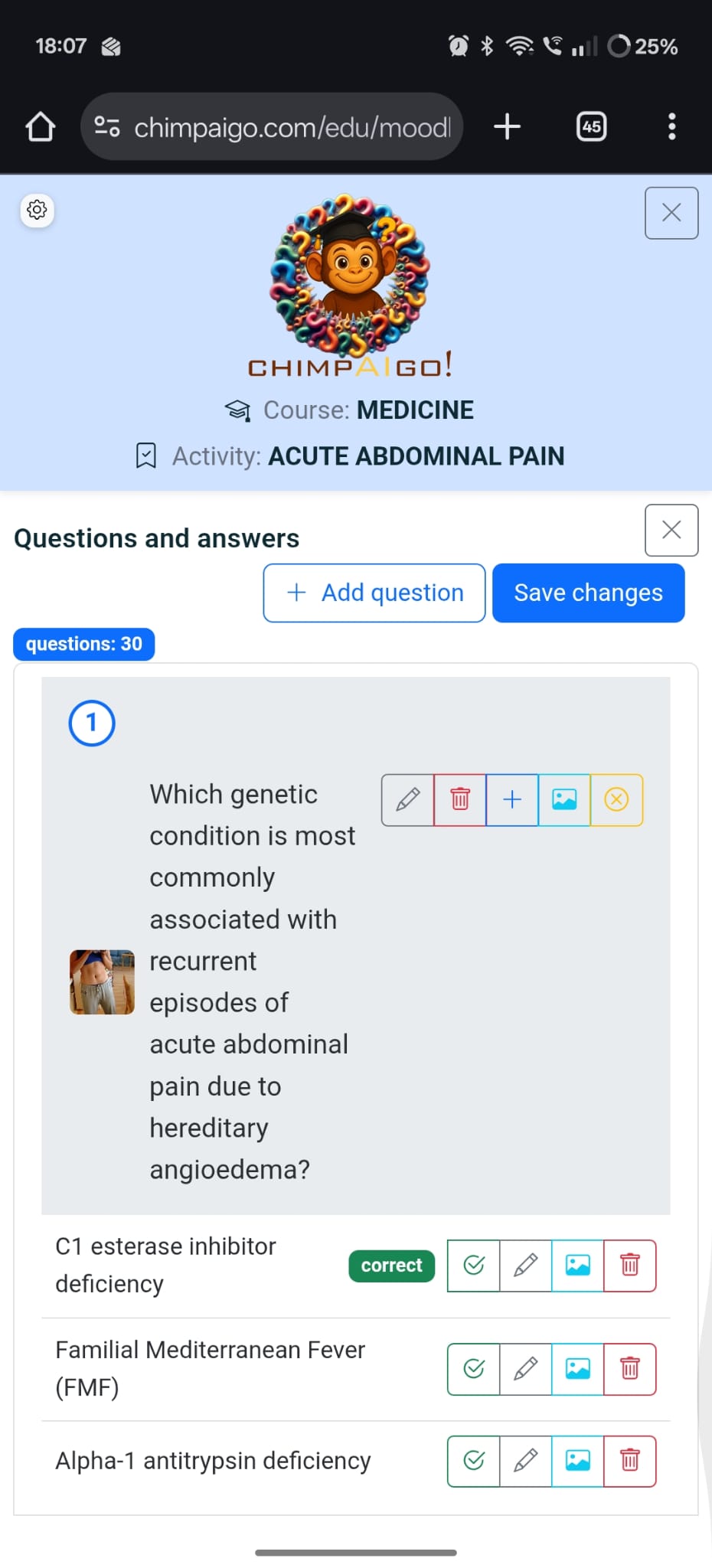
The editor lets you review each question, add or change the associated image, mark the correct answer, and adjust distractors. You can fine-tune the whole quiz before saving and publishing it for students.
In the Try tab, teachers can go through the quiz as if they were students, check the flow, and verify that the correct answers are set properly before opening it to the group.
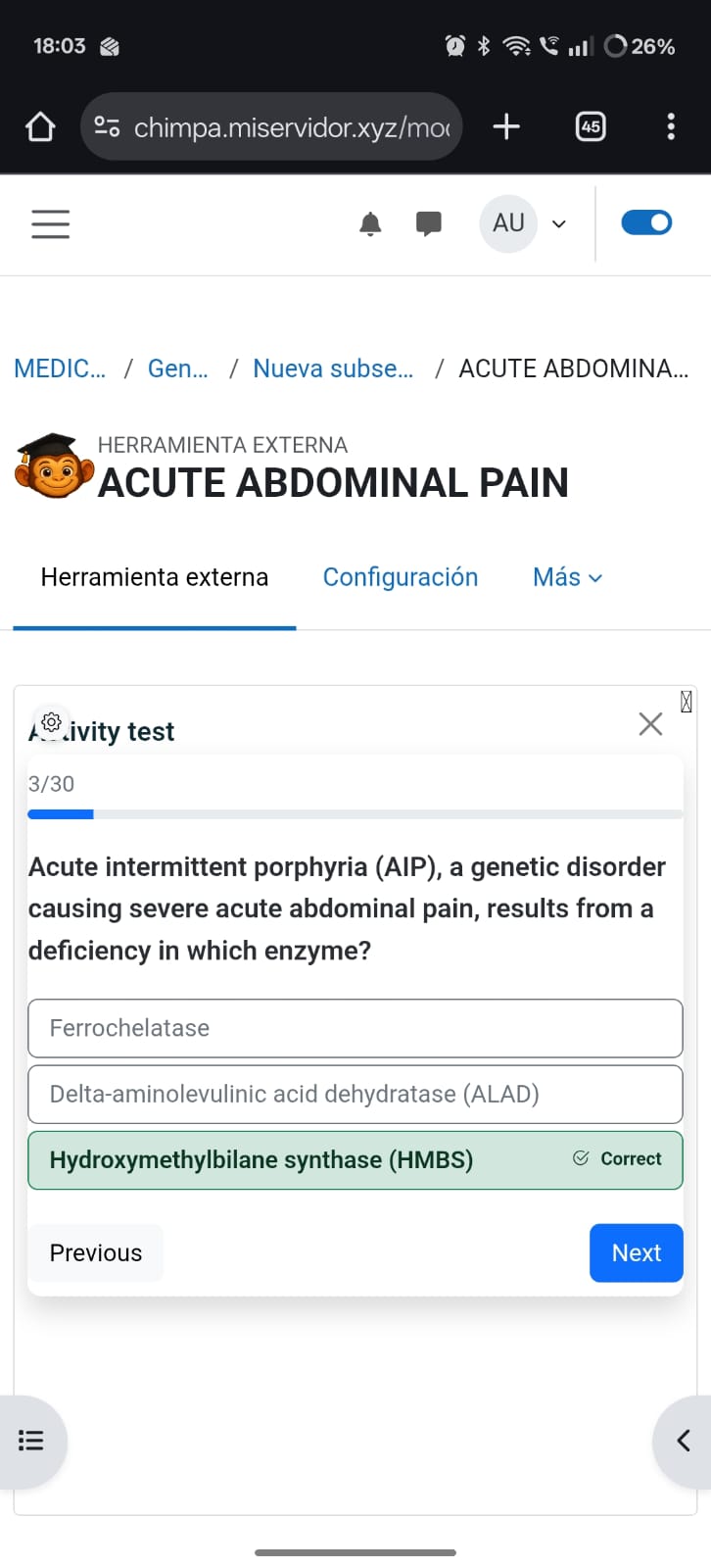
Students answer the quiz inside Moodle, with a progress bar, number of questions answered, and current success rate. When they finish, their result is automatically stored in the course gradebook.
Integration with Moodle and technical details
The plugin is installed like any other Moodle plugin and registers a preconfigured external tool (LTI). From that point on, it behaves like a normal activity: access permissions, course backups, and centralized grades.
For Moodle administrators
The chimpAIgo! plugin is distributed as a ZIP file and installed from Site administration → Plugins → Install plugins. Moodle’s installer handles validation and installation.
You can get more information and download the latest version from
the official plugin page:
mod_chimpaigo on moodle.org
.
Once installed:
- chimpAIgo! appears as an available activity / external tool in courses.
- The Moodle server needs internet access to communicate with the chimpAIgo! service.
For teachers
From the teacher’s perspective, chimpAIgo! is:
- One more activity type alongside assignments, quizzes, forums, etc.
- A simple panel to choose the base material (topic, PDF, URL, or video).
- A space where you review and adjust questions before publishing.
Students access the activity from the course page, and once they finish, their grade is automatically sent to the Moodle gradebook with no additional steps.
Frequently asked questions
What kind of questions does chimpAIgo! generate?
The plugin focuses on multiple-choice questions. Starting from the source you choose (prompt, PDF, URL, or video), it generates question stems and answer options that you can freely edit.
Can I edit the quiz generated by the AI?
Yes. You always stay in control: you can edit, add, and delete questions before publishing. Nothing is shown to students until you decide that the quiz is ready.
How is the grade calculated and stored?
When a student completes the activity, chimpAIgo! calculates their percentage of correct answers and sends it as the grade for that activity to the Moodle gradebook.
Do students need separate accounts?
No. Students use their regular Moodle accounts and see chimpAIgo! as just another course activity. There are no external registrations or extra passwords.